
Import old records
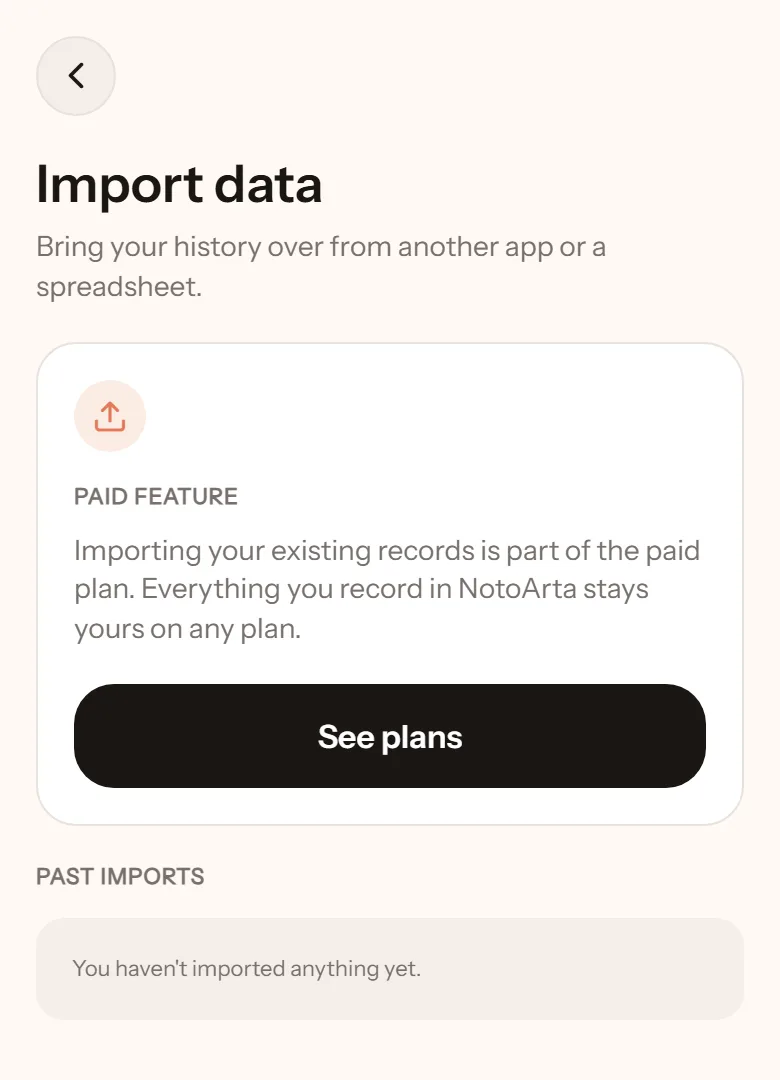
Already have records in another app, or in Excel? No need to retype them. Export to CSV, then import. This feature is part of the paid plan.
Prepare the file
Section titled “Prepare the file”- The format is CSV. Excel, Google Sheets, and Numbers can all Save As or Export to CSV.
- In some regions (much of Europe, and Indonesia), Excel saves CSV with a semicolon (;) separator. That is normal, NotoArta understands it.
- At minimum there must be a date column and an amount column. Account, category, and note columns are optional.
- Open Settings, tap Import data, then Choose a file.
- How the file is written: point to the header row, the date order (Day/Month/Year or Month/Day/Year), the number format (
1.250.000,50or1,250,000.50), and how income and expenses are told apart (minus means expense, or there is a type column, or separate debit and credit columns). - Match the columns: which column is the date, amount, account, category, note. Usually pre-filled.
- Match the accounts: each account in the file is mapped to a wallet in NotoArta. Skipped ones are not imported.
- Match the categories: match what you can. The rest is imported without a category.
- Check and import: see how many rows are ready and how many could not be read, then import.
Broken rows (an invalid date, a non-numeric amount, a zero amount) are skipped and reported with the reason. The rest still goes in. One bad row never fails the whole file.